HOME     PROJECTS     STORIES     PHOTO WIZARD     ABOUT     WEBSITE
Showing posts with label project helps. Show all posts

Saturday, December 4, 2010

Help, My Prints have Expired!!

How is this possible?

If you're getting the message, "This Printout has expired" and you've just finished processing the pictures, our bet is that you've pressed the print button in the Stories by Me Photo Wizard more than once.

You should have seen a dialog box like this one pop up:


Remember, you can only have one active print job in your account at a time. (This is how we can offer this service for FREE!) We don't store your pictures. We only let you have one active print job at a time to ENCOURAGE you to save the .PDF to YOUR COMPUTER.

Have no fear, your pictures are still in the Photo Wizard, formatted just the way you saved them. You just need to go back into your project and add them to the print list.

Next time you create a print file, OPEN the email that the Photo Wizard sent you, CLICK the link and SAVE the file to your computer. That way you have it ready to print one...or one hundred copies!

Same goes if you're sending the file to your local print shop for printing. You can't just forward the email that our Photo Wizard sends you...it's password protected so only you can view the pictures. Send them the SAVED file as an attachment.

We've posted more helpful hints to using the Photo Wizard here.

It really is easy... and worth the extra steps to format your pictures for these projects.

Think of ALL the stories you have to tell!

This one ornament print sheet contains enough pictures to make 5 ornaments!

Friday, November 12, 2010

Why Does it Do That?

If you have tried to format your pictures using our Photo Wizard, you might have noticed a slight variation between what you see on your screen and the final print that our Photo Wizard sends you.

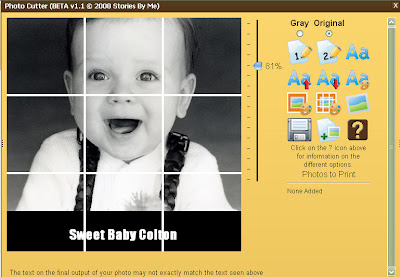
Here's the screen version. Formatting pictures for the puzzle can be tricky because you are trying to keep the 4 lines (nine sections) from dissecting important parts of the picture. I scaled the picture to 153% to fill the frame to my liking. The position of the faces look OK too. Notice how the right line falls to the left of the boy's eye and near the bottom of his chin?

The above image shows the picture as it comes back from the Photo Wizard. WHAT? The line now runs down the center of the boy's nose and near the bottom of his lip. That's no big deal, but one of the other lines (the line that you CUT!) now runs through the mom's eye. That is a much bigger deal (partially because it's MY EYE!) Seriously, we've helped more than a thousand of you create these works of art. It's no big deal to cut through an ear, forehead or cheek, but cutting through someone's eye is somewhat disturbing as it distorts the entire face.

Our programmer tells us that this is due to the fact that we are viewing the image on our screen, but the software formatting the picture actually resides on a server several states away. Because of the myriad of computer monitors, not to mention all the varieties of possible settings, our software has to make some assumptions as to what you are seeing.

Knowing that the Photo Wizard sees things slightly to the left and down from what I'm seeing, I simple pushed the picture up a little and to the right of where I wanted the final line to reside.

I now have the perfect layout for the puzzle project. This cute picture was from a family photo shoot a couple of years ago. I'm actually whispering into the ear of my son during the session, telling him to knock off whatever shenanigan he was up to. The photographer captured the moment and it's ONE of my favorite pictures!

Other projects are much easier to layout. Here's the ornament project...

Notice that a smidgen of the ear is missing. Not a big deal as I know that I'll be sanding that edge and distressing it with ink as I finish the ornament. If I wanted to, I could apply the same process of pushing the picture slightly to the right to get the entire ear in the window.

Keep in mind that you can only have ONE active print job in your account at a time. If you decide to reformat your pictures and repress the Print button, you'll get the following message:

If you think you MIGHT want to use that previous layout, save a copy of the file to YOUR COMPUTER. (Saving a copy of the email doesn't help, it only provides the link to your file!)

Now you know!

Saturday, January 9, 2010

How to display a SbM Magnet Board

We've had several requests for a review on ways to display our magnet boards. These different options work equally well with our 8x8 or 12x12 boards.

1. Easel
Probably the easiest and fastest way to get the project out and in front of your face. If you're using the easel with a Memory Tree, look for something that won't collapse while your kids are playing with the set. We offer our own version...which beautifully displays either board size.2. Ribbon
Not much to this option. The holes have been predrilled, you just need to push through the paper design. We recommend holding the board up to a light and pushing from the front to back of board. Use a thumbtack...a toothpick...a paperclip...or whatever is handy! The holes are purposely small. If you're considering thick, chunky ribbon, you might want also use a couple of metal book rings.
3. Magnets
Here's a great option for displaying your project on a filing cabinet, refrigerator front or other metal object. Just make sure to use several super-strong magnets on the back of your board.
4. Frames
We LOVE the customized look that these unfinished frames give to our different projects. We purposely sized our metal boards small enough to fit into most standard frames. Click on the links to learn how to make your own.

Collage Frame Instructions:
Fabric Frame Instructions:
There are our ideas. Hope it inspires you. Be sure to share your own creations!

Wednesday, November 11, 2009

New Puzzle Kits

Our puzzle kits now come with a new and improved metal tray. We selected metal that, over time, will develop a darker, vintage-looking patina. Because we feel that looking like 'you've been around the block once or twice' adds character to a finished project, we came up with a few ways to speed along the process.

The metal is shipped with a protective coating to keep it from aging prematurely. You'll want to remove it for these processes to work best. We sprayed our tray with a common household cleaner (something that will cut grease), rinsed and dried it.

Bleach Bath: In the example on the left, we submerged the tray for about an hour in a bucket of regular household bleach. Make sure that you use common sense when working with bleach; wear old clothes, rubber gloves and protective eye wear! Once we removed the tray from the bleach, we carefully rinsed it under water. The resulting piece was a little too rusty for our liking, so we did a quick once-over scrub with our handy Bar Keepers Friend (a BEST friend in my kitchen!) and fell in love with the end result!

Coke Bath: This easy process simply requires a bucket of coca-cola. You'll want to use soda that is fully carbonated. Soak the tray over night for best results. Don't try to drink any soda that is used in this process. (I offer this piece of advice because I had a teenage son seriously dumb enough to consider swiping a swig.) Once the tray has soaked sufficiently, rinse it in water and thoroughly dry it. The tray on the right features the end result. It offers a more subtle distressed look then the bleach process and was voted most popular by all of our friends that were polled.

These versatile trays can also be painted (use a paint made for metal) or decorate the outer edge with stickers or decals. Protect your furniture by placing felt or rubber bumpers on the bottom corners of the tray. A six-inch square of fabric in the bottom of the tray will provide a nice cushion for your blocks. The inside of the tray is also a perfect spot for storing extra copies of the puzzle pictures.

Keep in mind that the major emphasis in this project is the six pictures contained on the nine blocks. The tray is just a handy way to display and store the puzzle.

Wednesday, April 15, 2009

Photo Wizard Update

Want to feature family members on your own Memory Calendar? We're happy to announce that our Photo Wizard is ready to help!

First you'll need to locate and digitized pictures of friends and family that you want to remember on your calendar.

Next, go to www.storiesbyme.com and click on the Photo Wizard menu option. Look for the Get Started button. Enter your account information, or set up a new account. Don't worry...it's free!

The next screen is the Add Photos page. Just like the name implies, this is where you'll add pictures to your account. Simply click on the Browse button, find the picture files on your computer and press the Add Photo button. You can add up to 20 pictures, so don't forget anyone!

Once your photos are loaded, select the project that you're working on...in this case, Face Buttons. All that's left is to format the picture within the dotted lines. Use the slider bar to shrink or enlarge your picture. Your Memory Calendar Kit comes with round and square shaped buttons. Be sure to use both shapes when formatting the pictures.

Here's the part (the IMPORTANT part) that tells the Wizard what size to make these pictures so they'll fit the calendar buttons. BE SURE to select the project type. You'll need to do this once for each picture. It's easy, just click on the arrow to the right of Tree and highlight the Calendar option.


Save your changes and click on the Add Photo to Print list. Once you've added all of your pictures to the print list, you can click on the Print button located in the bottom right corner of the screen. The Wizard sends you an email with information on how to access your print job and important printing details.

You are now ready to create a keepsake that is sure to bring a smile to your face as you remember those things most important to you throughout the year.

Friday, March 27, 2009

Scanning - Made Easy!

Who doesn't have boxes (and boxes) of pictures needing to be preserved? I know I do...and I'm in the business of preserving memories! It doesn't matter that I have the equipment and know-how to get it done. I still find myself short on time and overwhelmed by the sheer amount of pictures needing preservation! (I am the proud keeper of all of our family's photographs.)

We have all heard stories of ruined memories due to unexpected flooding, hurricanes, tornadoes, fire...the list goes on. And natural catastrophes aren't the only thing we need to worry about. There are a million reasons to digitize our physical memories, and I've come across the perfect solution for making this a reality! [Sorry to everyone living outside the Salt Lake area. Check this out and then see if you have a local service in your own corner of the world.]

At the recent South Davis Family History fair, I came across the company Preservation Scanning. For as little as twelve cents a picture (yes, that's right, for 1000 photos they only charge .12 per scan) this company will COME TO YOUR HOME and help you unbury from your pile of photographs. Have fewer photographs? Cost starts at .18 cents a scan...and they'll still come to your home! Check out their website for all the specifics, but I can promise you that we'll be setting up appointments soon. We also plan to coordinate efforts for our local class participants. No more panic trying to get pictures ready for a class project. We hope to invite them to some of our classes! How would that be? While you're creating a memory, someone is sitting onsite preserving all of your other memories. Love it!

If pictures are worth a thousand words, 12-18 cents for Preservation Scanning is a screaming deal!

Monday, September 8, 2008

Good things coming!

Lots of you saw our Family Tree at Swiss Days. We showed several different ways to display the finished project. The framed version was a big hit! We promise to tell you exactly how to finish your frame, but we're still madly trying to get out a few remaining Swiss Day orders, not to mention all the store orders.

We hope this picture will help you envision the finished project. We proudly display our tree surrounded by the Irish Blessing: "May the Roots of your Family Tree Grow Deep and Strong".

Start looking for an unfinished frame with an opening that is 12x12 inches. The wider the frame, the better. This one has a 3 inch edge. We picked up it up at Roberts for about $15.00, minus our 40% off coupon, of course!

Suni is itching to create her own frame and we'll be sure to take pictures of the different steps so you can see how easy the project is!

Sunday, September 7, 2008

Distress It!

Note: We originally posted this in June. We decided to move it to the top of the list for all of you getting started on your holiday projects!
We thought we'd share ideas for distressing your project. You can personalize your project even more by using various distressing techniques. No two projects will be alike! Pick a look that matches your project, your pictures and your personal taste. Here are a few suggestions of distressing products we love to use:


Distress Ink by Jim Holtz. We love the color Old Paper and use it on EVERYTHING! It is a great start to making your project look like it's been around for a while.


There are also a few other colors in the Distress Ink line that we like to use. Vintage Photo is a great medium brown with just a hint of red. It looks great with black and white or color photos. We also like Walnut Stain to make the corners look extra distressed. Beware, this last one is really dark and we suggest to use it sparingly.

Along with Distress Ink, we like to use chalk. The brand we like is Color Box Chalk. Chestnut Roan is our absolute favorite! It gives better coverage than ink and is a good option for darkening paper edges or the wood when using dark pictures.


There are a few differences between using an ink and a chalk. It is good to know that the ink takes a few minutes to dry. If you don't allow it to dry it can smear and be a mess! Also, if you are planning on applying a top protective coating of decoupage glue, be sure to let it dry so the ink doesn't streak into your pictures. Chalk is a little easier - it dries immediately! No need to wait.

The trick to distressing your project is to just grab the ink or chalk and have at it! Start with a light color to build confidence , but don't try to make it too perfect. Imperfections just add to the character and help to tell your story.

Finishing Your Projects

You've worked hard to create the perfect project. You want to enjoy it for years... better yet, for generations. We used to recommend several coats of decoupage glue over the top of the pictures to protect your priceless images, but we found that sometimes the glue scratches or flakes using this process. We've tried numerous spray finishes. While most of them will work, we sing the praises of Krylon's Matte finish #1311.

NOTE: Several light coats of the spray work best! Hold the can at least 10 inches from the project. Thick
coats of finish, or spraying too close to the picture tends to dissolve the ink and/or change color tones.


Krylon Matte Finish #1311
Protect and enhance your finished project with this permanent, non-glossy finish. It reduces sheen and light reflection, while providing invisible protection.

Dries in minutes
Creates a soft, satin finish
Provides a durable protective coating in minutes
Non-yellowing
Moisture resistant

LESSONS LEARNED: The printed instructions on the can suggest that you shake it for two minutes before using it. If you're like us, you might be tempted to cut corners...DON'T! Suni had a class participant turn a brand-new (and might we add, unshaken) can onto her project. Imagine the horror of seeing your hard work splattered with a white-filmy substance?! The good news is that you can't ruin these projects. Simply sand down the affected pictures and glue a new one over it. Better yet, save yourself some time and SHAKE!

Thursday, July 24, 2008

Discussion Topics

Stories by Me began as a desire to help people find meaningful ways to preserve family stories. We recognize the importance of preserving history. We also appreciated the magnitude of living! The whole reason for creating this blog spot is to provide a place where you can go for inspiration to preserve your family stories. There are as many ways to tell a story as there are stories to tell. We'll share ideas that we've collected along our journey. We hope that you'll participate and tell us what you're doing to document history. Tell us what works...what doesn't. Let's learn together!

We thought it would help to introduce a different theme at the beginning of every month to get discussions flowing. Feel free to contact us regarding a topic that you would like discussed. Here are our topic ideas for next several month's:

August: Family History Summer Fun for Kids

September: Preserving Photographs

October:
Gift-giving Stories

We hope this gets your creative juices flowing! Be sure to check back in early August and participate in the discussion.

Harvey Cox said it perfectly:
All human beings have an innate need to hear and tell stories and to have a story to live by.

Let's start sharing our stories!

Tuesday, July 22, 2008

Reducing Picture Size


Have you come across this message using our Photo Wizard? Currently, our software works best with photo files that are smaller than 500 KB. You can load a larger file, but if you try to load anything over 900 KB you'll probably get this message. Our programmer tells us this road block has to do with internet connections and server size. Be assured that we are working on it! We want our Photo Wizard to be 100% user friendly. Here are some helpful hints that will let you resize your picture files so they will easily load into the Photo Wizard. If you get stuck, drop us a note at wizard@storiesbyme.com. You can even email your photos to us and we will resize them for your project.

The first step is to go to our Photo Wizard. Visit storiesbyme.com and look for the Photo Wizard (center of the menu bar). Click on it to bring up the Photo Wizard page. Be sure to read Step 1 Gather Pictures. Some photos just format easier than others for these projects and we want you to be pleased with the end results!


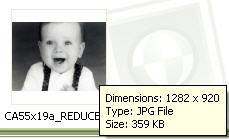
So, how do you know if your pictures fit the size requirements? You can try to load them into the Photo Wizard and see if you get the message. You can also open your directory and check the file size. Most programs will display a pop-up window with file data if you place your cursor over the file name. At 1.68 MB, this picture file is too big for the Photo Wizard.

We'll discuss two easy options for reducing picture size. If you have Photo Shop, Elements or another photo editing software, read option one. If you're not sure what is available on your computer, option two uses a free on-line photo editing utiliity.

Option1: Photo Editing Software
Open your picture in the editing software. Look for the command "Image Size," "Resize," or
"Resample."

This picture's digital file was created using a scanner and was scanned at 400 dpi (dots per inch). At its current resolution, I could easily print a large copy and be happy with the resulting image. Stories by Me products do not require high resolution images for great results! A memory candle picture is smaller than four inches and our memory block puzzle measures about a six inch square. The current size of the picture measures about 6.4 by 4.6 inches. We could reduce the measurement, but if we just tweak the resolution (dpi) we should have a file that can easily be passed back and forth across the internet. For this example, we changed the resolution from 400 dpi to 200. BE CAREFUL to save your changes using the SAVE AS file option! Otherwise, you will write over your original file and lose the high resolution data. We usually scan important pictures in TIFF format. We then scan (or convert) a second copy as a JPEG (a much more manageable file size and internet friendly). The original gets stored in a secure location. We won't touch it again unless we need to make a new copy of it. By making this one change, we were able to reduce a 1.68 MB file down to 296 KB.

Option2: On-line Photo Editing
To use the easy three step, on-line option, go to www.resize2mail.com. Use the browse option to find the picture that needs resizing. Our software will let you crop your picture so use the third option listed in step 2. We typically use 50% reduction unless we have a REALLY big file. You can also rotate your picture if it happens to be on its side. Press the OK button and let the software do its thing. Be patient! Depending on the size of your file, your internet connection and traffic on the world-wide web, it might a minute or two.
Confirm that the final file size falls into an acceptable range (we recommend something that is at least 100 KB, but not over 800 KB.) Be sure to use the SAVE AS option (see Option 1 above) when you save your new picture file.

Now you are ready to load your picture file into our Photo Wizard. Wait until you see how easy it is to format your pictures for the Stories by Me projects! Be sure to check back. We'll give you other helpful hints for using the software and let you know about new features that are coming!

Sunday, July 20, 2008

Inquiring Minds on Photo Scans

I received a phone call from a friend with a question about photo preservation. She has several thumbnail-sized pictures of ancestors. In some cases, it is the only picture that they have of the individual and she wants to make sure that they preserve these images in the best way possible. All of us can relate. Who doesn't have teeny-tiny pictures in our collection of family faces? Some of our photographs have been cut into oval shapes and dutifully pasted into genealogy records by those doing the best they could with the technology of their day.

So, given the wonderful technology of the 21st century, what is the best method for digitally preserving these pictures? We usually recommend scanning pictures at 300 dpi. This will create a file that is more than adequate for regular viewing and in most cases will let you enlarge the picture without sacrificing resolution. We know that the .tiff format offers a higher quality image as it is uncompressed, but it comes at the price of big (sometimes enormous) file size! Here is Brenda's question in a nutshell: Is it better to scan these little pictures at a high resolution, say 600 or even 1200 dpi, and save them in .jpg format, or will scanning them at a lower resolution in .tif format improve their resolution?

We did a quick experiment on Great-grandma Ellen. Thanks for helping, Grandma! This picture only measures .75 inches x 1.0 inch. To add to the dilemma, the image happens to be a copy of a long-lost original. We scanned the picture at 300 and 600 dpi (dots per inch) in both jpg and tiff formats. The file sizes ranged from 59 KB to just over 1MB.

300 dpi jpg = 59 KB
300 dpi tiff = 252 KB
600 dpi jpg = 241 KB
600 dpi tiff = 1.07 MB

There is virtually no visual difference in the resolution of any of our pictures. The print size of the 600 dpi is more than double that of the 300 dpi scans, but the smaller files enlarged easily and there is no noticeable difference in resolution when they are printed. Does this mean that we'll be happy with the outcome of pictures scanned at 300 dpi?

Please share any information you have on the best method for preserving small photographs. Inquiring minds want to know!